Every new build,
first.
OAPKH puts your team's test builds on your phone, straight from your organization's own server. Follow the projects you care about and get a push the moment a new build lands.

Free, for Android 8.0 and newer.

Is there something new for me?
It's the question you open the app to ask, so it's the first thing OAPKH answers. Everything you need to trust a build is one tap further.
What's new, first
New builds from every project you follow, newest first, with an unread badge. Mark one read on your phone and it's read on the web too.
Know before you install
Size and how much it changed, minimum SDK, tags, the changelog and the SHA-256, all before you tap download.
Filter by env and tag
Narrow a project's builds to one environment or tag and find the build you actually need.
A push when a build lands
Follow a project, or just one of its environments, and get notified the moment a build is uploaded. Tap the notification to open that build.
Check any APK
Got an APK from somewhere else? OAPKH reads it on your phone and tells you whether it matches a build your team published. Only its SHA-256, package name and version code are sent; the file never leaves your phone.
Every team, one app
Test for more than one organization? Join each one once. Separate servers, sign-ins and notifications, and you switch in a tap.
Say what broke, on the build
File feedback against the exact build you installed — markdown, screenshots, a screen recording — and the thread stays where the APK is. A dev can ask for more detail, and the item says who it is waiting on until someone answers.
Three steps to your first build.
- 1
Install OAPKH
It's free on Google Play.
- 2
Join your team
Scan the invite QR code your team shares, open the invite link, or sign in with your server address and account.
- 3
Follow your projects
Pick the projects you test and turn on notifications. New builds show up in What's new.
OAPKH connects to a server your organization runs. No invite yet? Ask whoever ships your team's builds.
A look inside.
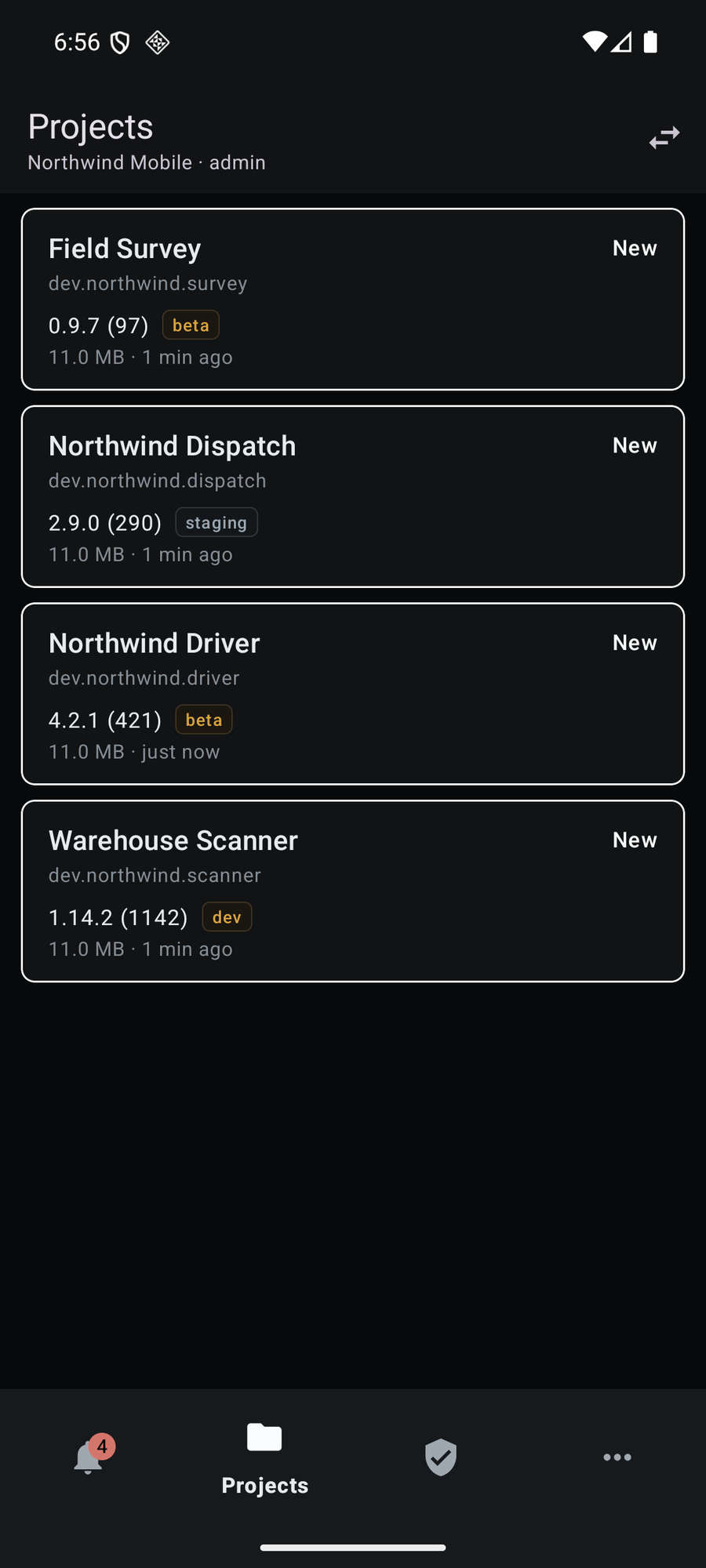
Projects
Everything you have access to
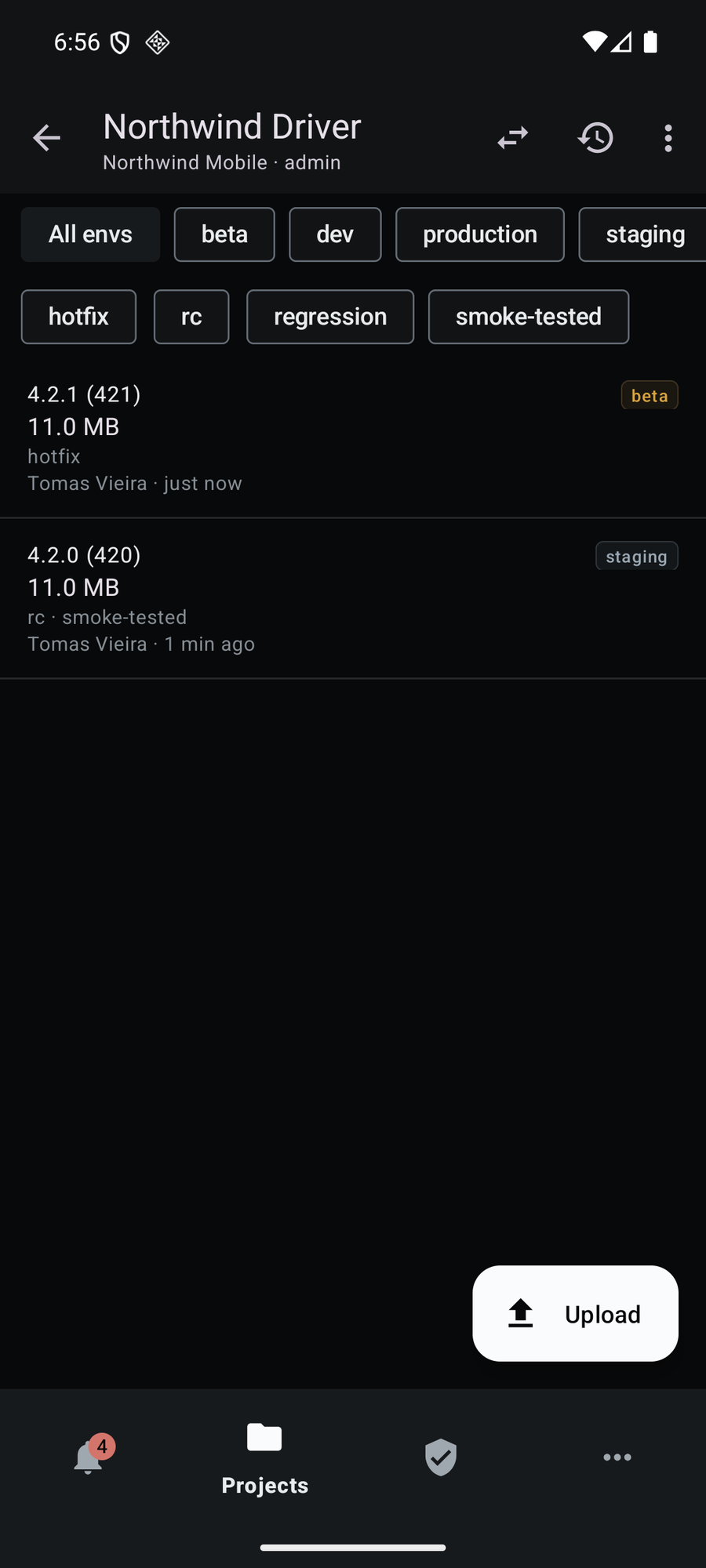
Builds
Filter by env and tag
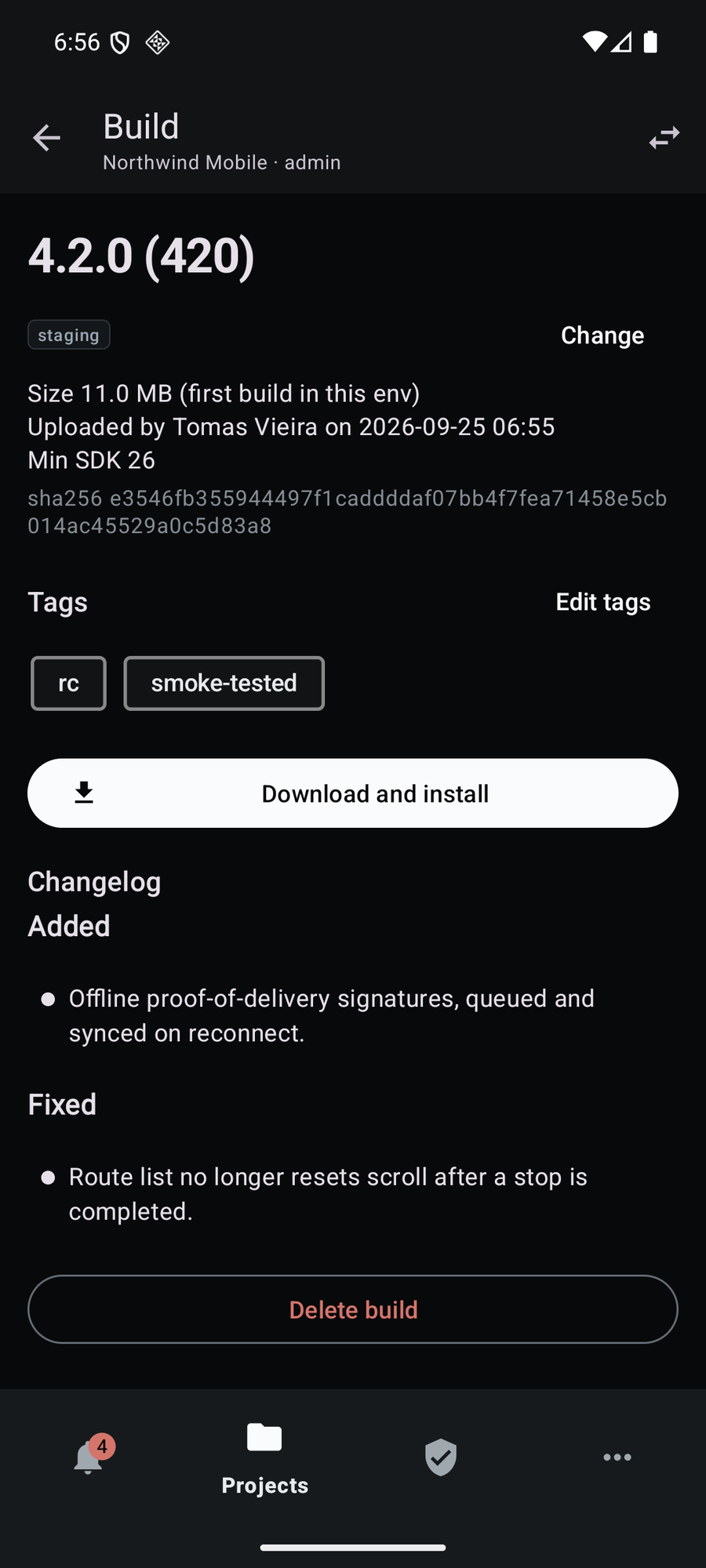
Build detail
Size, min SDK, changelog, SHA-256
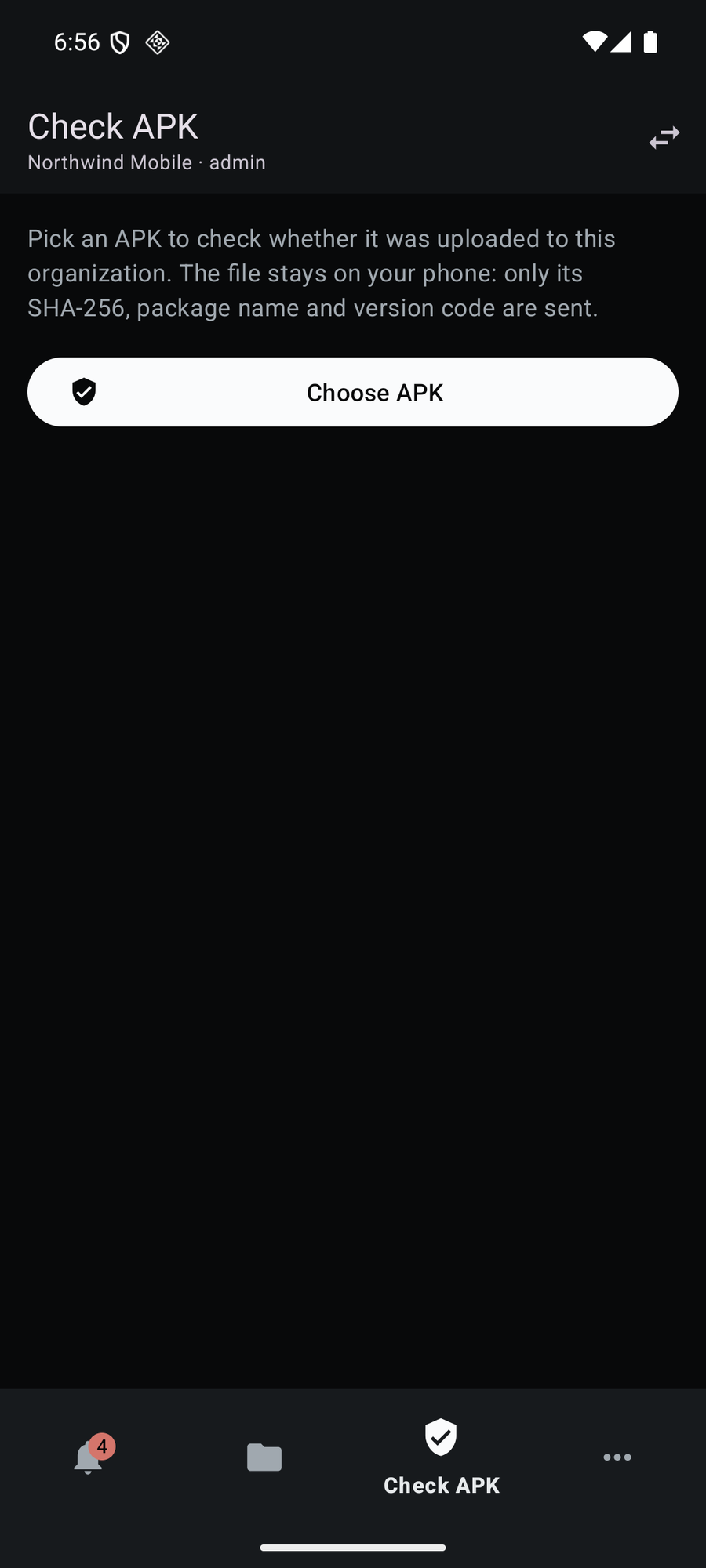
Check APK
The file never leaves your phone
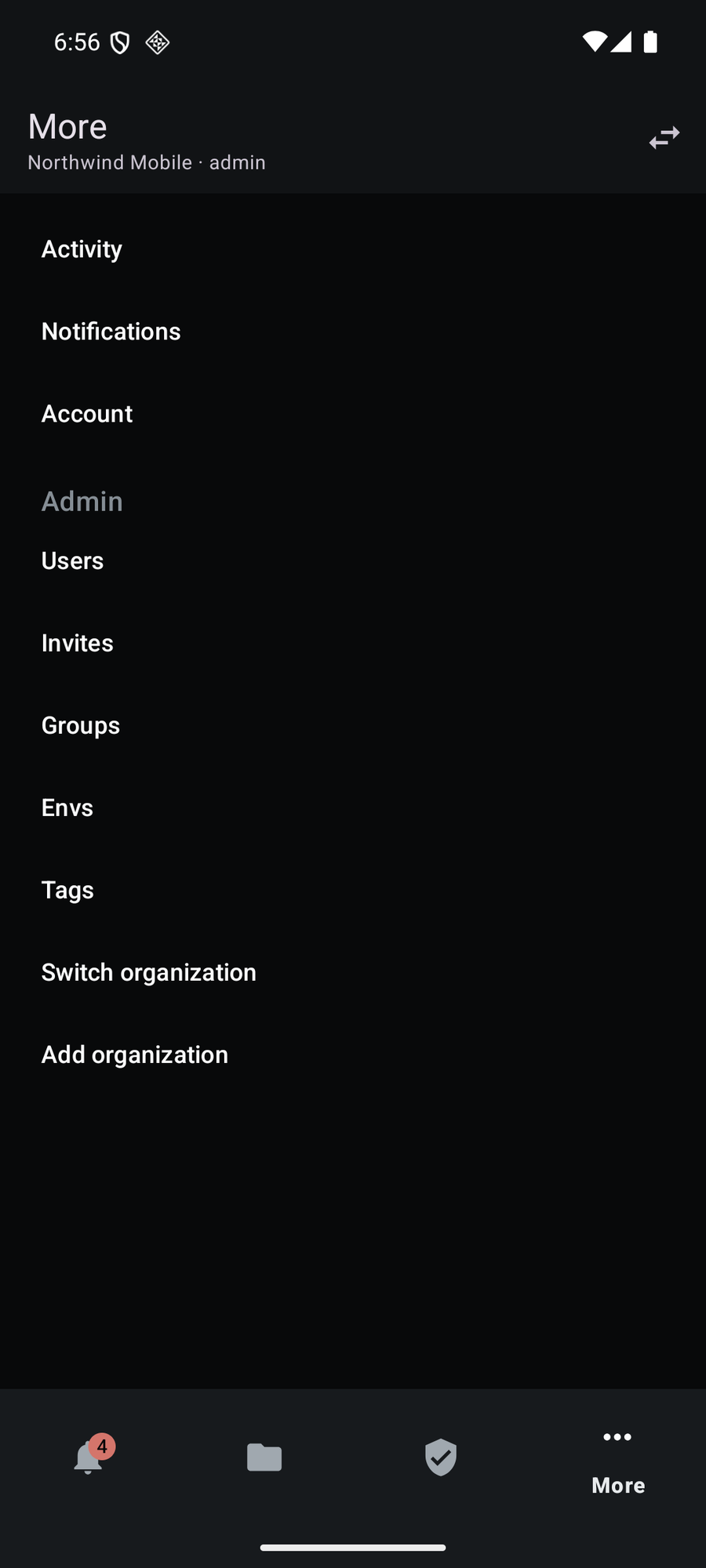
More
Switch or add organizations


Run the instance yourself.
One compose file brings up everything: the server, its Postgres, and the two volumes that hold your builds. Nothing is expected on the host but Docker — the server image is pulled from Docker Hub, so there is no toolchain to install and nothing to compile.
-
Download three files
There is nothing to clone and no source to build. The server itself comes from a published image, so these three files are the whole deployment.
Caddyfile is only read by the TLS profile below, but keep it beside the other two.
-
Generate the three secrets
They have no defaults on purpose. Compose refuses to start and names the one you missed rather than booting with a password anyone could read out of the repository.
cp env.example .env sed -i "s/^POSTGRES_PASSWORD=.*/POSTGRES_PASSWORD=$(openssl rand -hex 24)/" .env sed -i "s/^OAPKH_JWT_SECRET=.*/OAPKH_JWT_SECRET=$(openssl rand -hex 32)/" .env sed -i "s/^OAPKH_ENCRYPTION_KEY=.*/OAPKH_ENCRYPTION_KEY=$(openssl rand -hex 32)/" .env -
Start it, then make the first account
Migrations run on startup, so there is no separate step. Every account after this one is created by invitation from inside the dashboard.
docker compose up -d
docker compose --profile tools run --rm createadmin
Then open your server address for the dashboard, and /api/docs for the API reference.
What to set in .env
Compose reads this file on its own — there is nothing to export or source.
Required
- POSTGRES_PASSWORD
- For the bundled Postgres. It is never published to the host — only the server is — but nothing here ships with a guessable default.
- OAPKH_JWT_SECRET
- Signs access and refresh tokens. Changing it later signs every session out.
- OAPKH_ENCRYPTION_KEY
- 64 hex characters. Encrypts the Firebase service account at rest. Changing it makes an already-stored account undecryptable, and it has to be pasted again.
The ones that matter
- OAPKH_PUBLIC_URL
- The one to get right. It is the address phones actually reach, and invite links, signed download links and push payloads all embed it — so localhost works only for a browser on that same machine; a phone needs the LAN address or a domain. Downloads are rejected on the device when it does not match the address the app connected to.
- OAPKH_VERSION
- Which published image to run. Pin it to a release rather than tracking the newest, or an unpinned instance picks up whatever was published last the next time it restarts.
- OAPKH_DOMAINOAPKH_TLS_EMAIL
- Your domain and an address for the certificate. Read only by the TLS profile below.
- OAPKH_PORT
- The host port the server is published on; inside the container it always listens on 8080. Behind TLS, set it to 127.0.0.1:8080 so the server is not also reachable unencrypted.
- OAPKH_INSTANCE_NAME
- What your team sees in the dashboard and in the app's instance switcher.
- OAPKH_MAX_UPLOAD_BYTES
- The largest APK accepted. 500 MiB by default.
- OAPKH_ADMIN_EMAILOAPKH_ADMIN_NAMEOAPKH_ADMIN_PASSWORD
- The first account, and read only by step 3. The password must be 8 to 256 characters. Add OAPKH_ADMIN_ROLE to make it something other than an admin.
HTTPS is not optional in production
The app on Google Play refuses plain http:// server addresses, so a plain-http instance is unreachable from it however well it works in a browser. The TLS profile puts Caddy in front and obtains a certificate automatically:
docker compose --profile tls up -dSet OAPKH_DOMAIN and OAPKH_TLS_EMAIL, point OAPKH_PUBLIC_URL at your https address, and set OAPKH_PORT to 127.0.0.1:8080 first.
Upgrading is the same two commands with a new OAPKH_VERSION: docker compose pull then docker compose up -d. Your builds live in named volumes and a version change does not touch them.
Your team's next build, on your phone.